Introduction
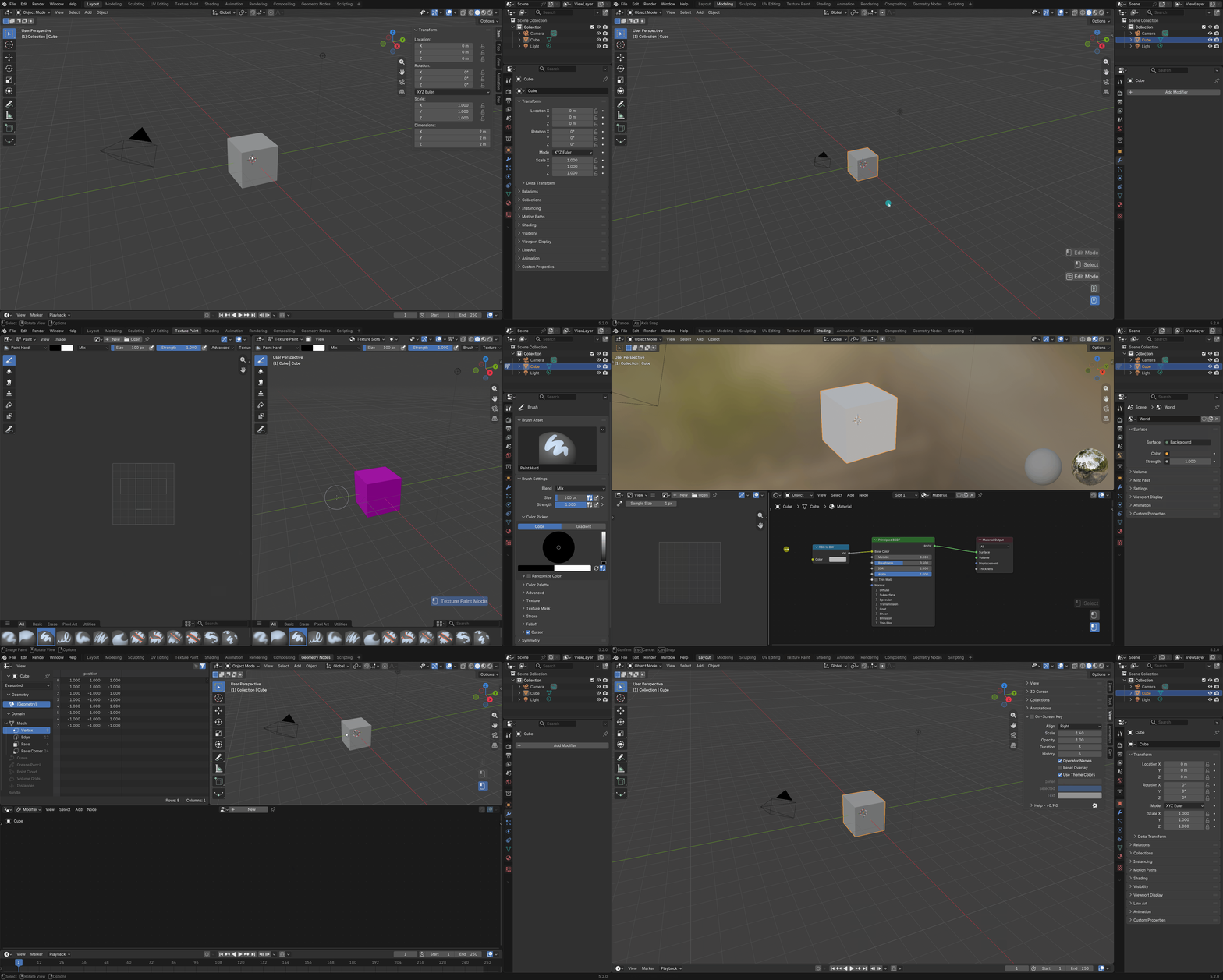
On-Screen Key is a Blender addon that displays your keystrokes and mouse input as a fading stack of operator-style boxes — each input a rounded widget with its native Blender event icons and text, exactly like the status bar. It draws directly inside the editor, so your inputs are always visible while recording, streaming, or teaching.
Features
What On-Screen Key offers?
| Native Event Icons | Keys render as Blender-style event icons with auto-fitting text; modifiers as Shift/Ctrl/Alt/OS glyphs. |
| Platform-Correct Keys | Modifier glyphs match the platform — Cmd on macOS, Win on Windows — mirroring Blender's native rendering. |
| History Stack | The last few inputs each render as their own operator-style box, newest at the bottom, each fading out over the key duration. |
| Mouse Input | Clicks, drags, double-clicks and scroll wheels each show their dedicated icon; held buttons stay lit; rapid scrolls in one direction group into a single entry. |
| Broad Input Coverage | Letters, digits, F1–F24, numpad, punctuation and media keys, extra mouse buttons, trackpad gestures and NDOF devices — every event the status bar knows. |
| Follows the Active Editor | The overlay tracks the editor under the mouse, so it always draws where you are working. |
| Operator Names | Show the executed operator's label after the input, e.g. "X Delete" (toggleable). |
| Theme Aware | Box and text colors follow the theme's Tool widget colors, or use custom colors. |
| Every Editor | Draws in the 3D Viewport, Image Editor, Node Editor and Video Sequencer, with a toggle in each editor's overlay panel. |
| Auto-Start | The toggle is remembered, so if it is left on the overlay starts automatically the next time Blender launches. |
| Help & Links | A Help subpanel exposes the changelog popup, documentation, bug reporting and store links. |
On-Screen Key vs Screencast Keys
How does it compare to the classic Screencast Keys add-on?
| Feature | On-Screen Key | Screencast Keys |
|---|---|---|
| Input display | Native Blender event icons, matching the status bar | Plain text event names |
| History | Fading stack of operator-style boxes, newest at the bottom | Event history list, last event, or repeat count |
| Mouse input | Dedicated native icons for click, drag, double-click and scroll; rapid scrolls group | Mouse figures, event history, hold status, custom mouse images |
| Operator names | Shown inline after the input, e.g. "X Delete" | Separate "Last Operator" display (label and/or id name) |
| Colors | Theme Tool-widget colors, or custom fills and text tint | Custom text, shadow and background colors |
| Editor coverage | 3D Viewport, Image Editor, Node Editor, Video Sequencer — toggled from each editor's overlay panel | Draws to a chosen Area, Region, Window or the mouse cursor |
| Toggle | Configurable shortcut (default Shift+Alt+C) plus a persistent auto-start toggle | Shift+Alt+C, optional enable-on-startup |
In short: On-Screen Key trades Screencast Keys' older-Blender support and extra mouse-position options for native, theme-matched icon rendering and a fading operator-box history that covers every major editor.
Settings
Every option is in the add-on preferences and the sidebar view panel.
| Setting | Description |
|---|---|
| Align | Left, Center or Right edge of the editor |
| Scale | Sizes the icons, box and margins (1.0–2.0) |
| Opacity | Opacity of the box, icons and text (0.1–1.0) |
| Duration | Seconds an input stays on screen (1–10) |
| History | Number of recent inputs kept in the stack (1–10) |
| Operator Names | Show the executed operator after the input |
| Reset Overlay | Clear the overlay when the active editor changes |
| Shortcut | Keyboard shortcut to toggle the overlay (empty for none) |
| Use Theme Colors | Fill boxes from the theme's Tool widget colors |
| Inner / Selected / Text | Custom box fills and text tint when theme colors are off |
Demo
Key presses stacking up and fading out as operator-style boxes, with native Blender event icons and text.
Support
Join our Discord server to stay updated.
Other Add-ons
Other add-ons you might like.
Become an Affiliate
Interested in becoming an affiliate partner?
We are actively seeking individuals who are passionate about our products and are eager to spread the word. As an affiliate, you'll have the opportunity to earn a commission on sale that comes from your referrals. If this interests you, we'd love to hear from you. Please contact us on Discord to discuss this opportunity further. We look forward to the possibility of welcoming you to our affiliate program.
Discord DM: karan.b3dhub